
How to Verify Shopify COD Orders by WhatsApp with Commify
Emily CarterAugust 7, 20265 min read
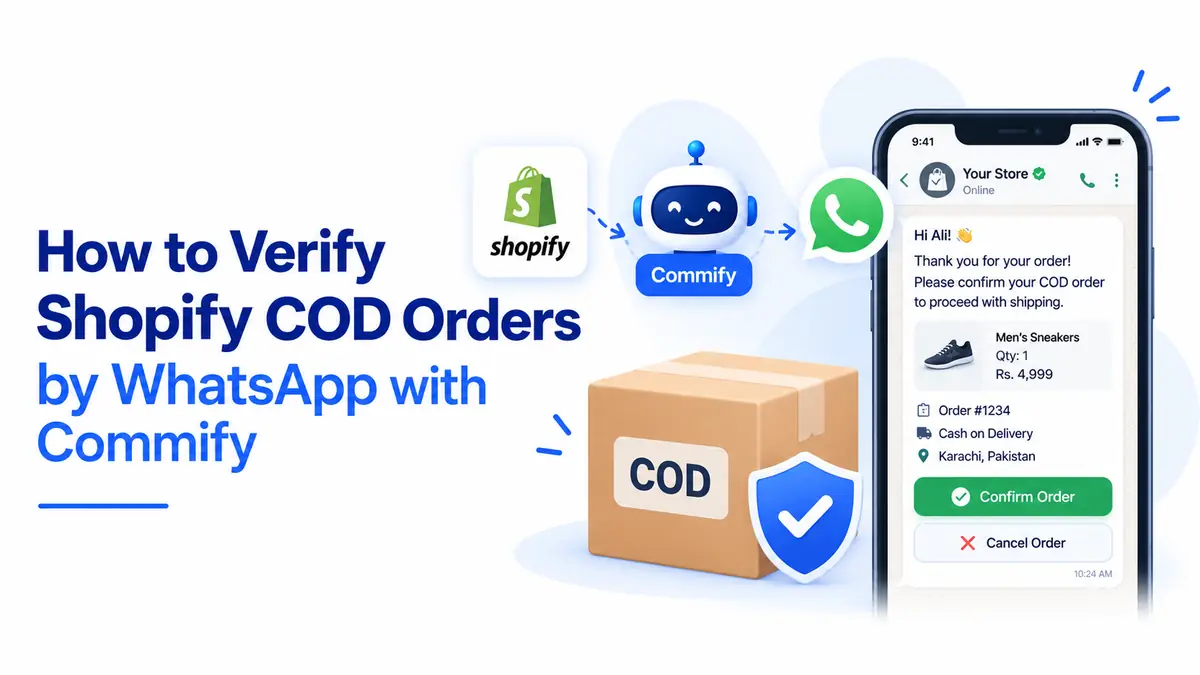
Cash on delivery remains one of the most convenient payment methods for online shoppers. Customers can place an order without paying upfront and pay when the package arrives. For Shopify store owners, however, COD can also create a serious operational challenge. Some customers forget about their orders, enter incorrect phone numbers, place orders accidentally, or refuse to accept the parcel. This is where automated Shopify COD order verification can make a meaningful difference. Instead of manually calling every customer, merchants can send an automated WhatsApp message immediately after a COD order is placed. With Commify.ai, the customer can receive the order details and simply choose whether to confirm or cancel the order.
What Is Shopify COD Order Verification?
Shopify COD order verification is the process of confirming that a customer genuinely wants to receive an order before the store ships it. When someone places a Shopify order using cash on delivery, the store has not yet received payment. Therefore, confirming the customer's intent can help merchants avoid spending money on orders that may never be accepted.
A WhatsApp-based verification system makes this process much easier. Merchants can verify shopify cod via Whatsapp before dispatching the order, helping confirm customer intent. Instead of depending on manual phone calls, a store can automatically send a message containing important order information and clear response options. Commify supports this type of automation by connecting Shopify with WhatsApp and allowing customers to confirm or cancel their COD orders.
The Importance of Verifying COD Orders
COD gives customers flexibility, but it also shifts some financial risk to the merchant. A store may spend money on packaging, warehouse handling, shipping, and return delivery before discovering that the customer never intended to accept the parcel. Fake orders and unconfirmed purchases can therefore affect both profitability and delivery operations.
A proper COD verification process provides an additional checkpoint before fulfillment. When customers receive a WhatsApp confirmation message, they have an opportunity to review their purchase and confirm that they still want it. If they no longer want the product, they can cancel before the package is dispatched. This simple step can help merchants identify genuine orders and reduce avoidable fulfillment costs.
Step 1: Link Your Shopify Store with Commify
The first step is to connect the Shopify store with Commify. According to Commify's integration process, merchants can connect their Shopify store by entering the store subdomain and installing the Commify app from the Shopify admin panel. The newer integration process is designed to simplify the connection without requiring merchants to manually create a custom Shopify app or generate an Admin Access Token.
Once the store is connected, Shopify data can be used by Commify's automation features. This is important because the verification workflow needs information about the newly created order and the customer's WhatsApp number.
Step 2: Create an Approved WhatsApp Message Template
The next step is to create a WhatsApp message template for your verification campaign. Since business-initiated WhatsApp messages may require an approved template, the message should be prepared carefully and submitted for approval before it is used in the live campaign. Commify.ai allows users to create message templates and provides default templates that can simplify the setup process.
For a COD verification message, keep the wording customer-friendly. Include the customer's name, basic order information, and a clear request to confirm the purchase. Two useful buttons are “Confirm Order” and “Cancel Order.”
Step 3: Create the Shopify COD Verification Automation
After preparing the message template, go to the Shopify automation section in Commify.ai and create a new campaign. Give the campaign a recognizable name, select Shopify as the store type, choose the connected store, and select COD Verification as the action.
Commify's current automation setup also provides an option to set a message delay. For example, the verification message can be sent shortly after the order is placed rather than immediately. The exact delay can be adjusted according to the store's workflow. The message template and button actions can then be selected within the campaign.
Step 4: Set Up Confirm and Cancel Actions
The key benefit of automated verification is that the customer's response can trigger the next action automatically. When the customer clicks “Confirm Order,” the automation can trigger an action that identifies the order as confirmed. Similarly, the cancellation option can trigger an action for an order that the customer no longer wants.
Commify.ai provides postbacks and actions for these buttons. Merchants can use them to update order information or apply appropriate tags.
Step 5: Test Your Shopify COD Verification Workflow
Create a test COD order in Shopify and check whether the order information reaches Commify correctly. The test should cover the customer's phone number, product information, price, and button actions.
Commify's webhook workflow provides another method for merchants who want greater control over the data. In this setup, Shopify's order-creation webhook sends information to a Commify webhook URL. Commify.ai can then capture the response and map fields such as the phone number, product list, and price to the WhatsApp template.
How COD Verification Can Reduce RTO
One of the biggest advantages of verification is the potential reduction in failed COD deliveries. Return-to-origin shipments can create costs at several stages, including packaging, transportation, handling, and reverse shipping. When a customer confirms an order before dispatch, the merchant has stronger evidence that the buyer still intends to receive it.
Commify.ai also highlights automated COD confirmation as a way to address fake COD orders and reduce RTO. Its current website describes a workflow that verifies COD orders through WhatsApp, cancels unverified orders after a defined period, and automatically tags orders in Shopify. The important point is that verification should not make the customer journey complicated.
Final Thoughts
A Shopify COD order does not have to become a source of uncertainty for an online store. With the right verification process, merchants can confirm customer intent before spending time and money on fulfillment. WhatsApp provides a convenient communication channel, while Commify makes it possible to automate the confirmation process through Shopify integration. Whether you use the straightforward Shopify automation campaign or a more customizable webhook workflow, the goal remains the same: identify genuine COD orders, reduce unnecessary cancellations, and make order processing easier. For growing Shopify businesses, Shopify COD order verification can become an important part of a more efficient fulfillment strategy. When implemented correctly, COD Shopify automation can save staff time while improving communication with customers.